How to Save and Reuse Pagination Profiles in TableCopy
When extracting data from paginated web tables, you often need to configure pagination buttons and related settings. If you work with the same website or similar tables regularly, setting up pagination from scratch every time can be repetitive and time-consuming.
TableCopy Profiles make this process easier. You can save your current pagination settings as a Profile and reuse them whenever you need them. The next time you work with a similar table, simply select the saved Profile and click Use This Profile to apply the saved configuration to your current pagination settings.
This tutorial walks you through the process in four simple steps.
What Is a TableCopy Profile?
A Profile is a saved set of pagination settings in TableCopy.
After configuring the pagination button and other relevant options, you can save the configuration as a Profile and give it a recognizable name. When you need the same settings again, you can select the saved Profile instead of binding the pagination button and configuring everything from scratch.
TableCopy Profiles are especially useful if you:
- Extract paginated tables from the same website regularly.
- Frequently collect product listings, order records, or other multi-page data.
- Want to reuse pagination settings that you have already configured.
- Need to reduce repetitive setup when extracting web table data.
Step 1: Save Your Pagination Settings
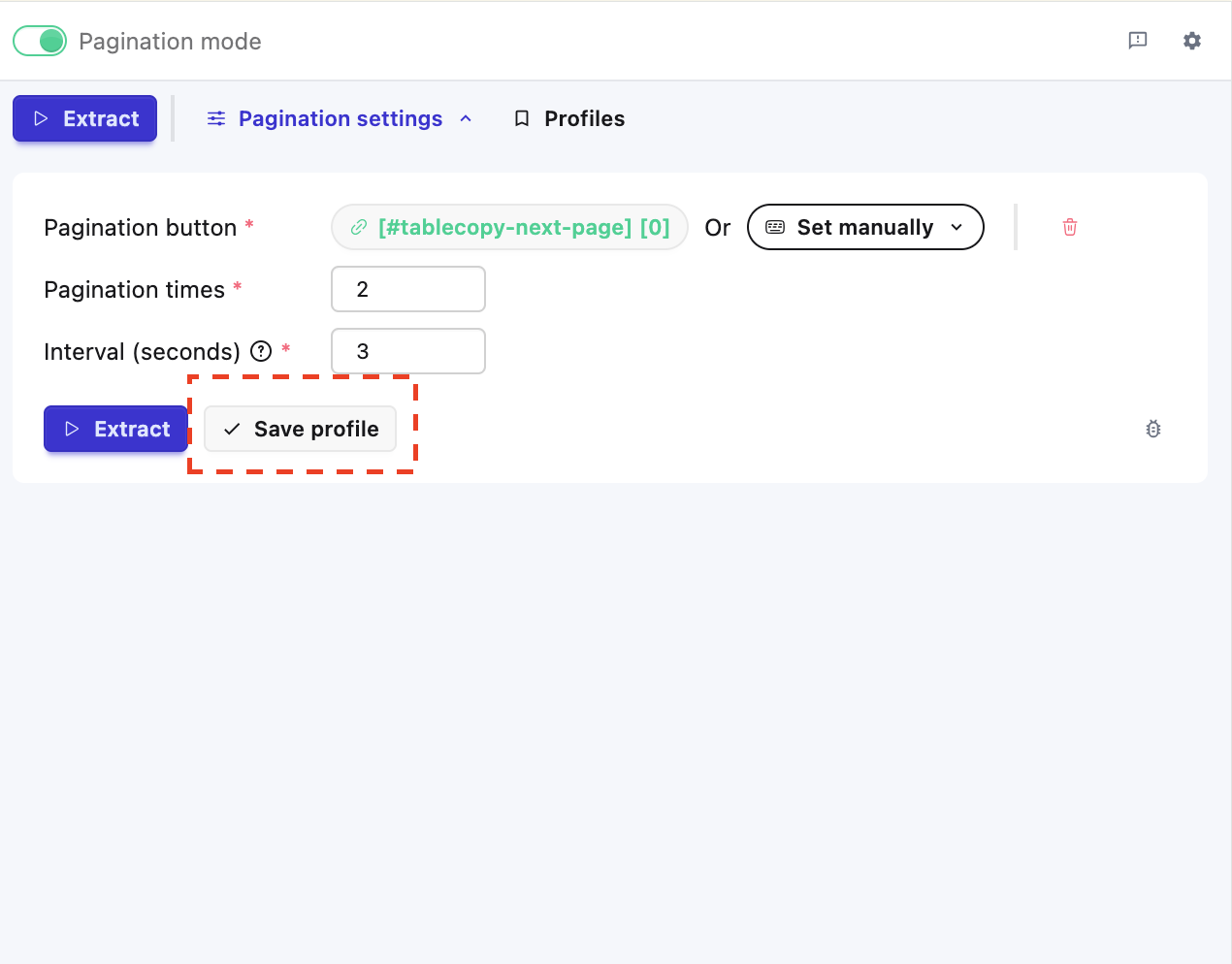
Open the webpage containing the table you want to extract, then configure the pagination settings in TableCopy.
Once you have configured the pagination button and relevant options, click the Save button to save your current configuration as a Profile.
Step 2: Enter a Profile Name
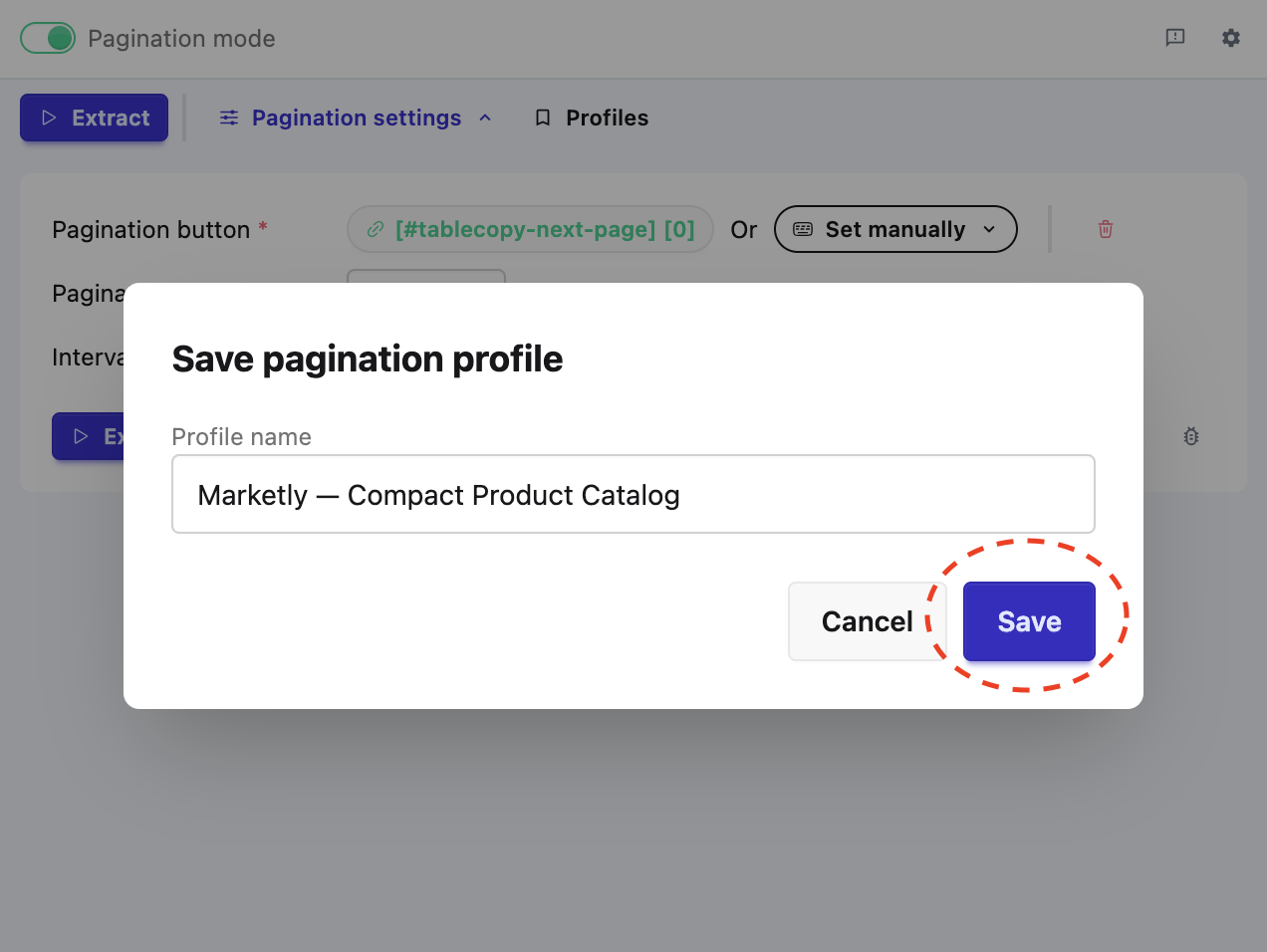
After clicking Save, enter a recognizable name for your Profile and click Confirm.
Choose a name that describes the website, table, or purpose of the configuration. For example:
Product List PaginationOrder HistoryInventory Table
Once saved, your current pagination configuration becomes a Profile that you can reuse later.
Tip: If you work with multiple pagination configurations, give each Profile a distinct and descriptive name so you can find the right one quickly.
Step 3: Select a Profile to Use
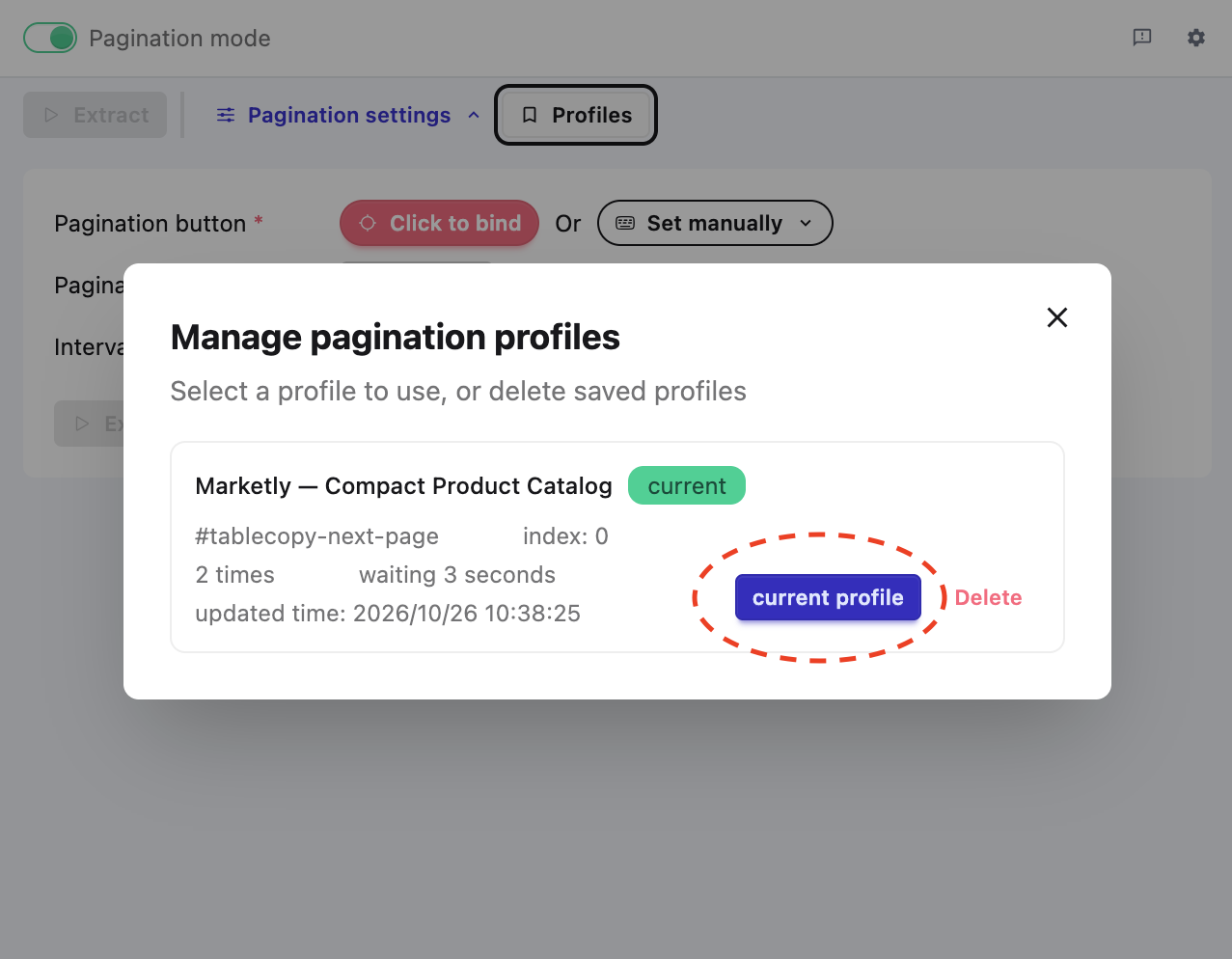
The next time you need a saved configuration, open TableCopy and click the Profiles button.
Find the Profile you want to use in the pop-up panel, then click Use This Profile.
TableCopy will use the saved configuration, so you do not need to bind the pagination button again manually.
Step 4: Apply the Saved Configuration
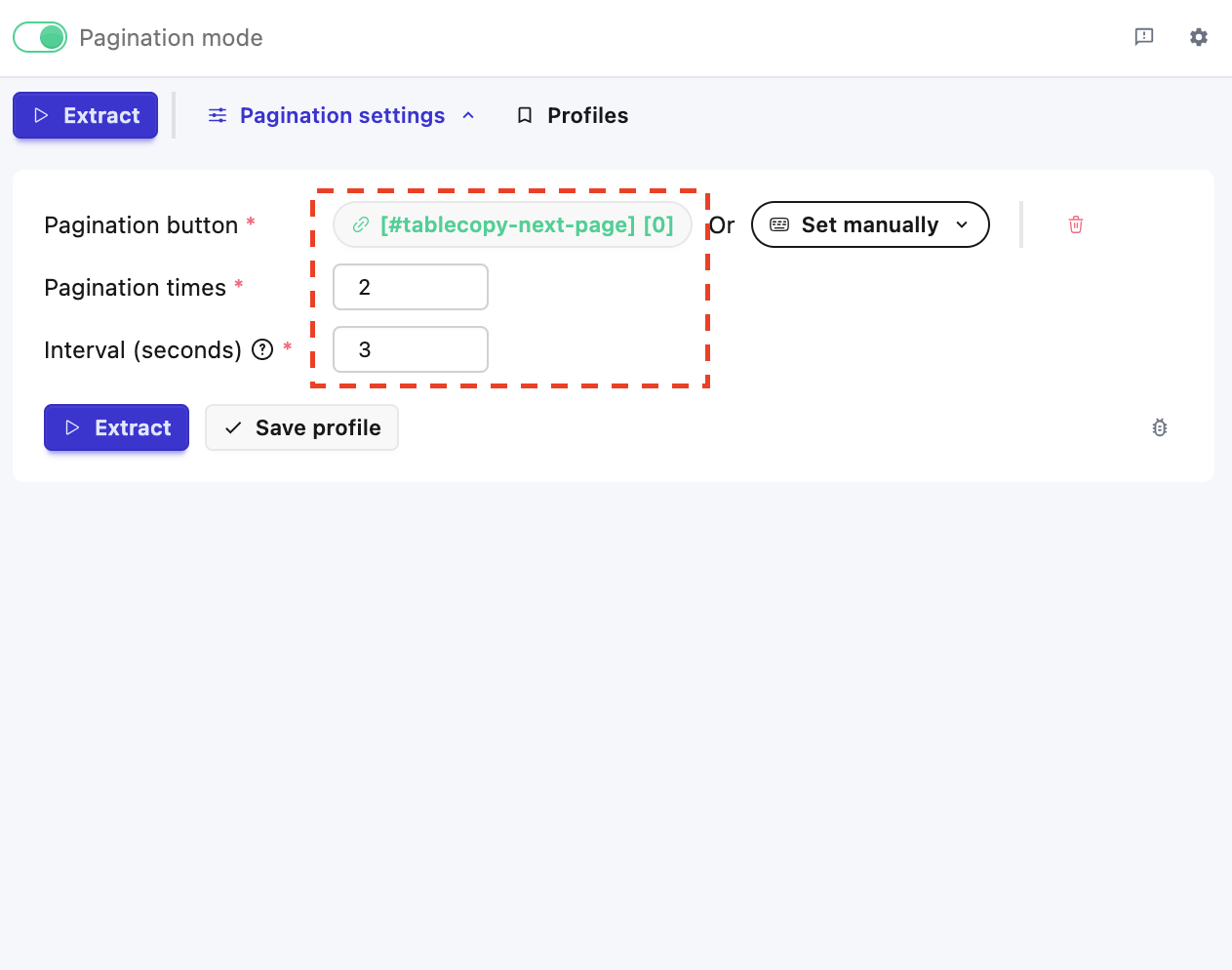
After you select and use a Profile, its saved pagination settings are automatically applied to your current pagination configuration.
Check that the settings are suitable for the webpage you are working with, then continue extracting the paginated table data.
That's it! Your pagination configuration is ready to use. The next time you work with the same type of paginated table, you can reuse the saved Profile instead of repeating the setup process.
Summary
With TableCopy Profiles, saving and reusing pagination settings takes just four steps:
- Configure pagination and click Save.
- Enter a Profile name and confirm.
- Open the Profiles panel and select the saved Profile.
- Click Use This Profile to apply the saved settings.
If you regularly extract data from paginated web tables, Profiles can help reduce repetitive configuration and make your data extraction workflow more efficient.
Learn more about TableCopy on the TableCopy product page.